

Claude can write a batch of social media posts and schedule them in Buffer, so you stop writing and scheduling posts one at a time. You connect Claude to Buffer, have Claude draft the posts, review them, and tell Claude to schedule them. You can start on Buffer's free plan.
Deciding what to post and getting each post scheduled are the slow parts of social media. I run this workflow from a Claude project, and Claude handles both. Claude plans the posts, I review them, and Claude schedules them in Buffer on the dates it recommends. Here are the five steps.
What Do You Need Before You Start?
You need a Claude account and a Buffer account with at least one social channel connected.
- Claude. A Claude account. The Buffer connector works in Claude on the web and in the desktop app, according to Buffer.
- Buffer. A Buffer account with a social channel connected, such as Facebook or Instagram. I connected Facebook. Buffer has a free plan, and the FAQ below covers what it includes.
Step 1: Connect Claude to Buffer
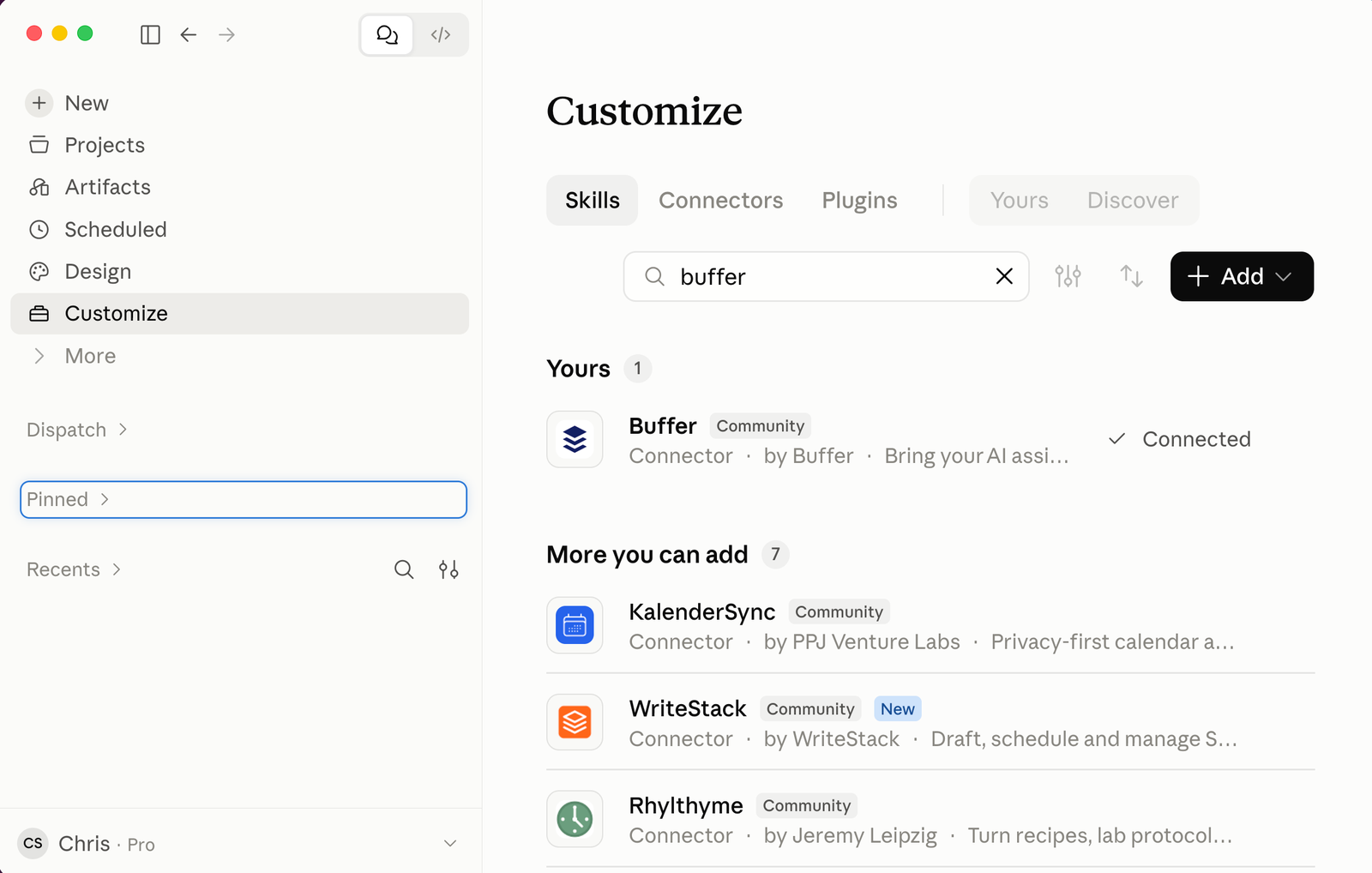
Open Customize in Claude, search for Buffer in Connectors, and click Connect. Claude walks you through the approval, and the connection is active when you finish.
- In Claude, open Customize.
- Open Connectors and search for Buffer.
- Click Connect on the Buffer result.
- On the connecting screen, click Continue connecting.
- Click Connect Claude to approve access, and sign in to Buffer if prompted.
- Confirm that Buffer shows as connected.
Step 2: Have Claude Generate Content for Your Social Media
Open your Claude project, paste your prompt, attach your content inspiration, and send it. Claude returns a table of proposed posts with recommended dates.
I run this workflow from a Claude project. Every time I use it, the prompts and responses are saved in the folder. This lets Claude build an understanding of how I like to run my social media.
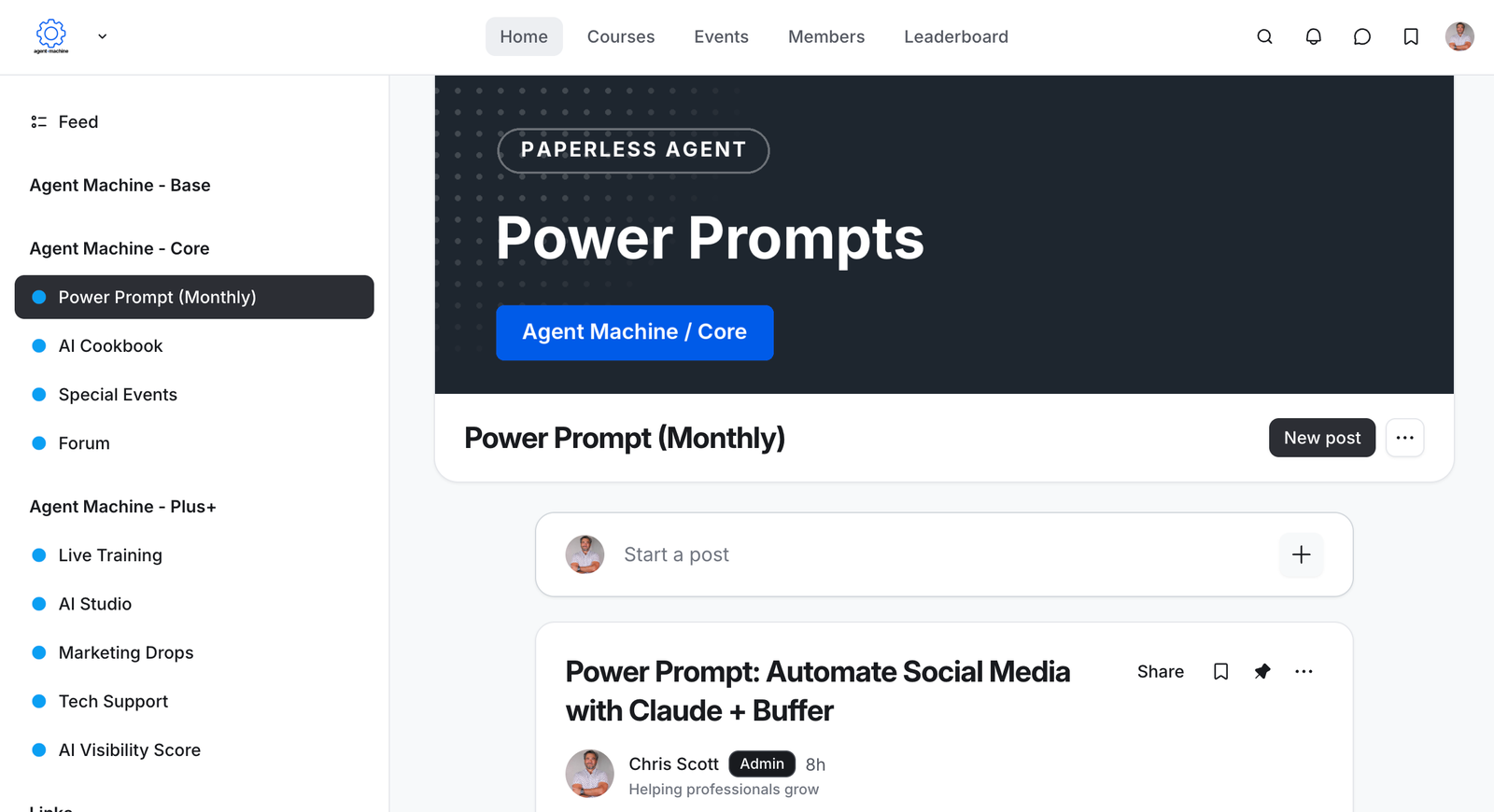
Claude works better when it has content to reference. This gives it an idea on the style and type of content I want it to post. I use a Marketing Drop and a Power Prompt from the Agent Machine Network, our online community. A Marketing Drop is a zip file of marketing inspiration, and the Power Prompt tells Claude what to do with it.
- Open your project. Mine is Social Buffer.
- Paste the power prompt into the prompt window.
- Drag the marketing drop, the zip file, into the prompt window.
- Send the prompt.
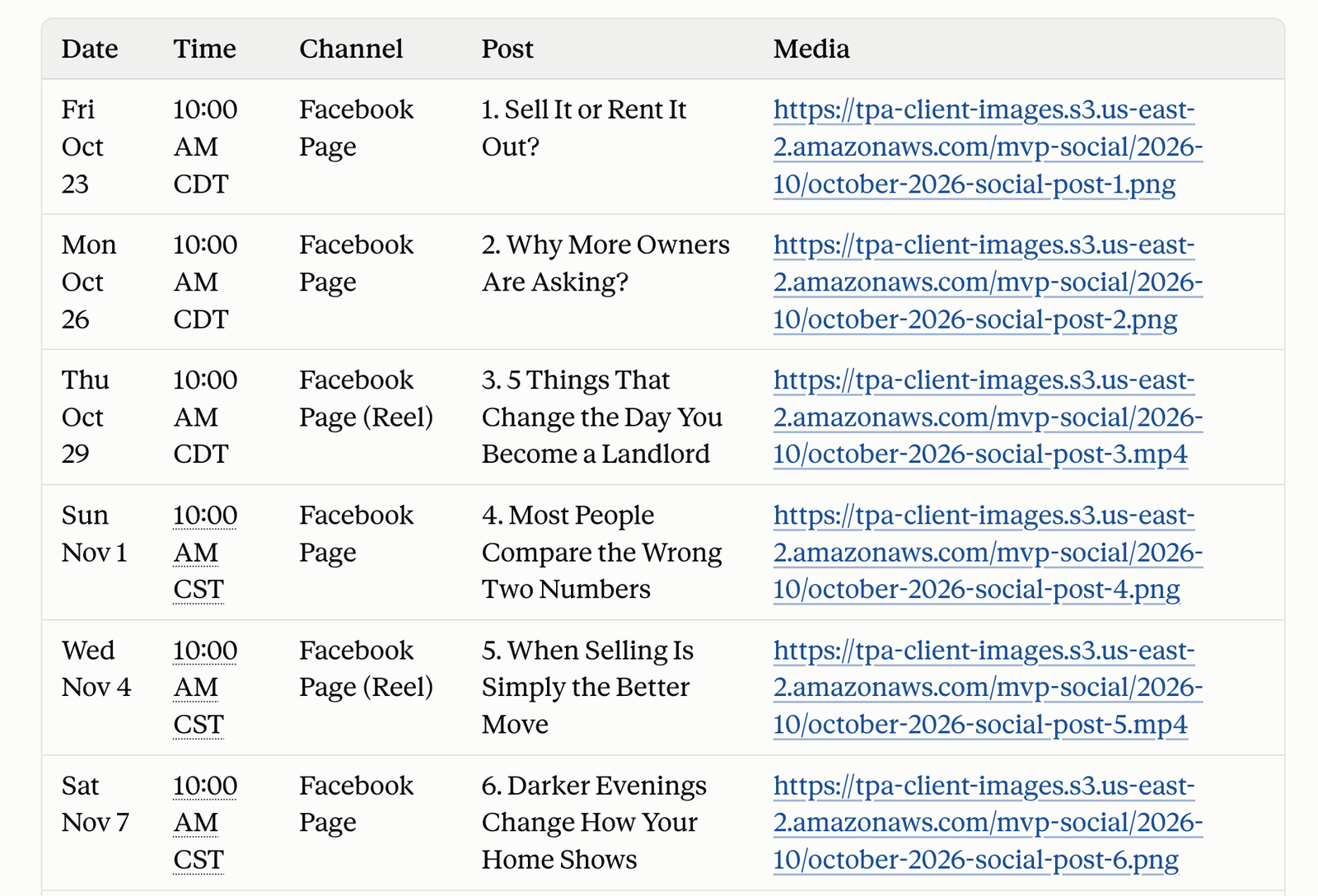
Claude builds a table of every post it plans to publish, with recommended dates. To use your own prompt instead, tell Claude the channel, the topics, and the number of posts you want.
Access the Agent Machine Network here.
Step 3: Review the Content Before Scheduling
Read every post in the table before you schedule anything. You are responsible for everything that goes out under your name.
Check each post for accuracy, tone, and compliance. Tell Claude what to change, and ask for a revised table. Our post on the pitfalls of using AI in real estate covers invented property features and Fair Housing risks in AI-written content.
Step 4: Have Claude Schedule the Posts in Buffer
Tell Claude to post in Buffer using the dates it recommended. Claude creates each post in your Buffer account, and you can watch its thinking as it works.
I had Claude post to Facebook, and Claude can target any channel connected to your Buffer account. Buffer says AI-created posts go to your queue as drafts or scheduled posts, so you can review them before they publish.
Step 5: Review and Modify Posts in Buffer
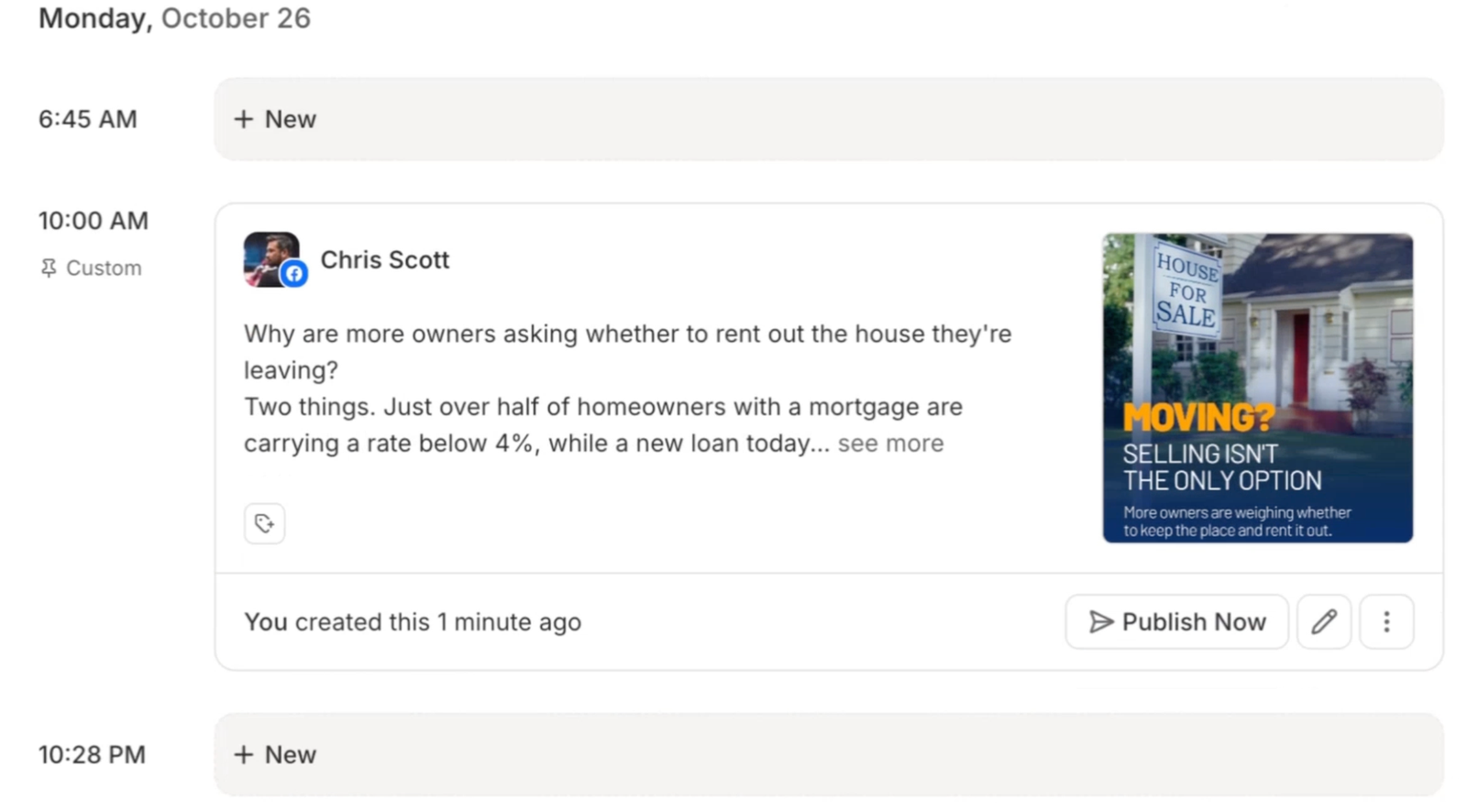
Refresh Buffer and open its calendar. Every post Claude scheduled appears on its date, and you can edit, move, or delete any of them.
Before the run, my Buffer account had nothing scheduled. After Claude scheduled the posts, my calendar showed posts on different dates running into the next month. Ask Claude to add more posts or fewer, or change any post directly in Buffer.
Let Claude draft and schedule. Keep the approval for yourself.
The power prompts and marketing drops are available in the Agent Machine Network.
Frequently Asked Questions
Q: How much does Buffer cost?
Buffer's free plan covers up to 3 channels and 10 scheduled posts per channel, according to Buffer. Paid Essentials plans start at $6 per channel per month on monthly billing, according to Buffer. Buffer states that MCP access, the connection between Claude and Buffer, is included on every plan, including Free. The 10-post limit counts the posts waiting in a channel's queue, and a slot reopens when a post publishes. On the free plan, ask Claude for 10 posts per channel at a time.
Q: Which social media channels can Claude schedule posts to?
Claude schedules posts to the channels connected to your Buffer account. I connected Facebook and pointed my run there. Instagram and the other profiles Buffer supports connect to Buffer the same way, and you choose which channel Claude targets in your prompt. Buffer's free plan allows up to 3 channels, according to Buffer.
Q: Does this work with ChatGPT?
Yes. Buffer lists a ChatGPT integration that connects through the same Buffer MCP server. Connect it in four steps:
- In ChatGPT Settings, open Apps or Connectors and turn on Developer mode under Advanced settings.
- Add a new app named Buffer.
- Enter
https://mcp.buffer.com/mcpas the MCP server URL and set Authentication to OAuth. - Click Create, and approve access in the Buffer sign-in window if prompted.
Last updated: October 22, 2026.
Chris A. Scott helps professionals use AI to grow. He is an AI Marketer at The Paperless Agent and the author of Real Estate AI Professional.